 Exclusive Products
My Canon Printer Won't Connect to Wi-Fi. What Should I Do?
Last updated: December 2025
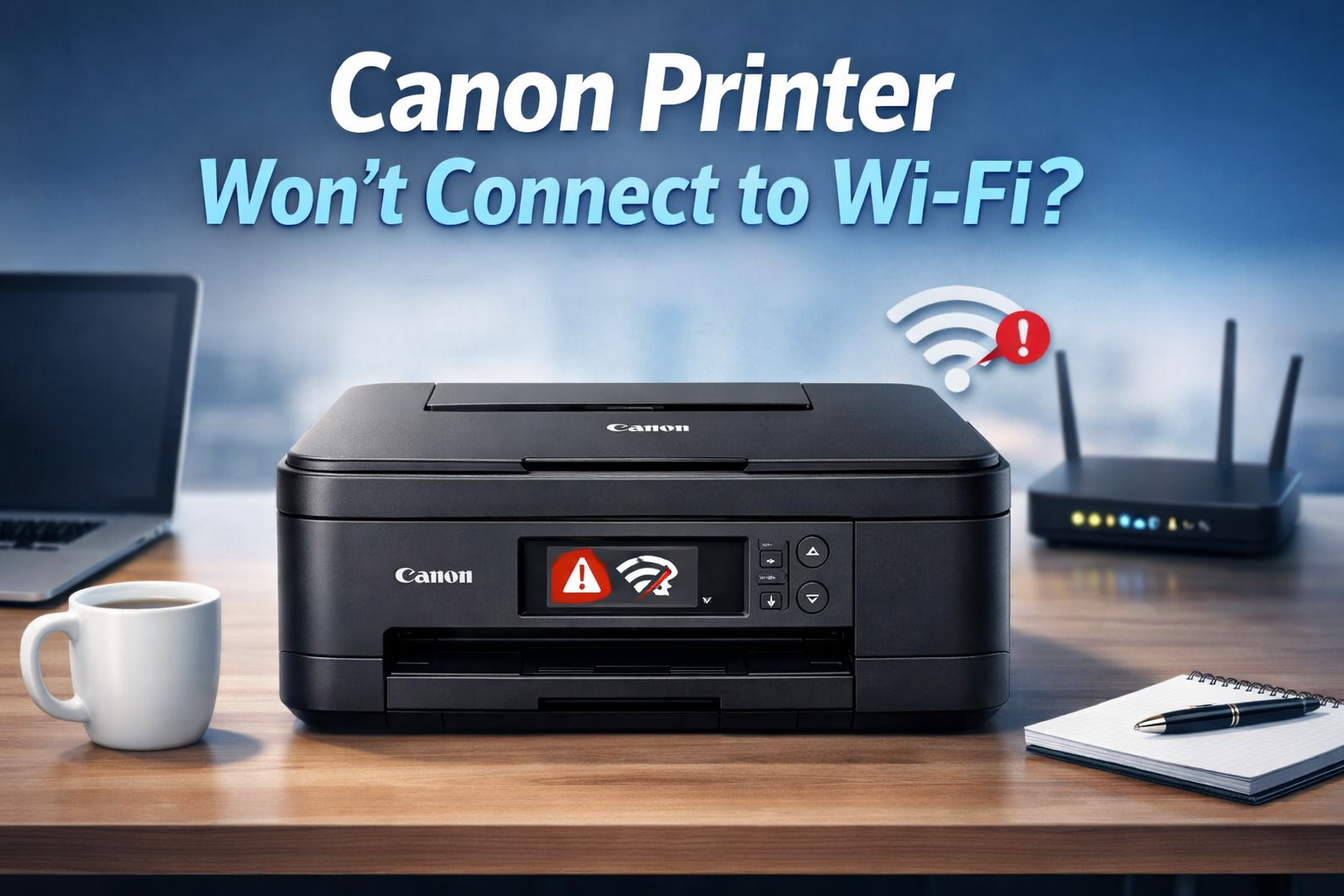
Wireless printing is supposed to make life easier. No cables, no mess—just print from anywhere. But when your Canon printer refuses to connect to Wi-Fi, that convenience quickly turns into frustration. This is one of the most common problems Canon printer users face, whether it’s a new setup or a printer that suddenly stopped working. The good news is that most Wi-Fi connection issues are fixable at home without calling a technician. In this guide, we’ll walk through every possible reason your Canon printer won’t connect to Wi-Fi and explain step-by-step solutions in plain language.
Why Canon Printers Have Wi-Fi Connection Problems
Before jumping into solutions, it helps to understand why this issue happens. Most Canon Wi-Fi problems fall into these categories:
- Wrong Wi-Fi password entered
- Printer connected to a different network
- Weak Wi-Fi signal
- Router compatibility issues
- Incorrect printer settings
- Outdated printer drivers
- Firewall or antivirus blocking connection
Once you identify the cause, the fix becomes much easier.
🔔 Don’t Wait Until Ink Runs Out
If your current printer often shows low ink warnings or slow performance, this is the right time to upgrade.
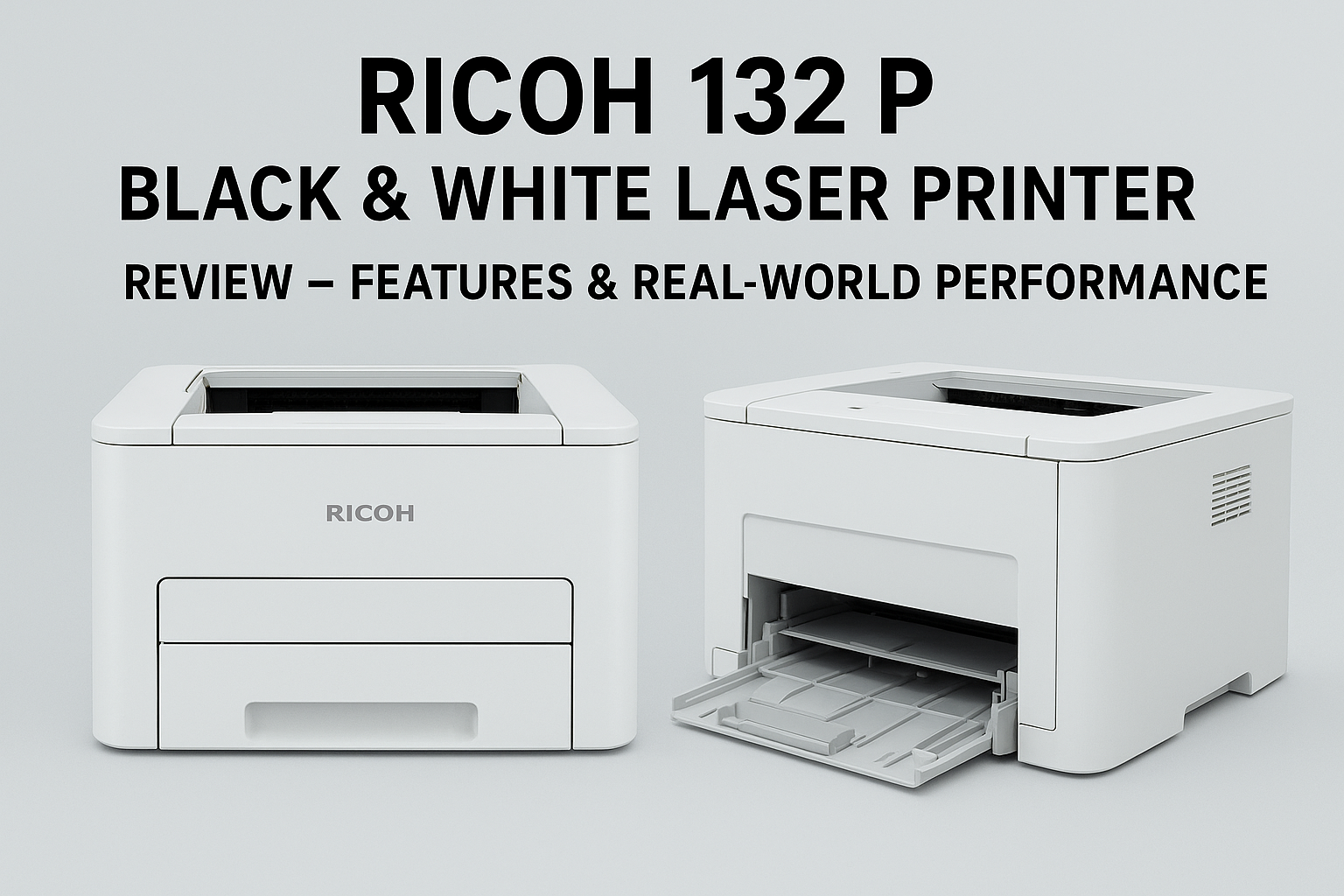
Recommended Printer (Limited Stock):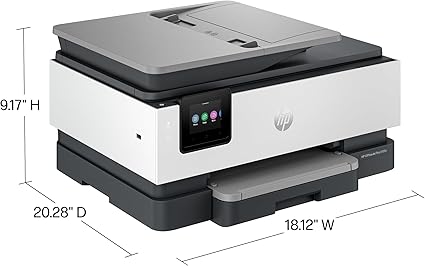 HP OfficeJet Pro 8135e Wireless All-in-One Printer
$301 $399 (25% off) Free Shipping
Reliable ink tracking, wireless printing, and smart app support make this printer a smart long-term choice.
Order Now Before Prices Go Up
My Canon Printer Won't Connect to Wi-Fi Step By Step Guide
1. Verify Your Wi-Fi Network
Before diving into troubleshooting, ensure that your Wi-Fi network is functioning correctly. Check if other devices like smartphones, tablets, or computers can connect to the network without issues. If your network is down, restart your router and wait for it to reconnect. This step ensures that the problem isn't with your Wi-Fi network itself.
- Check that your Wi-Fi network is turned on and working properly
- Connect another device such as a mobile phone or laptop to the same network
- Confirm that the internet connection is stable without frequent drops
- Restart the Wi-Fi router if the network is not responding
- Wait for the router lights to stabilize before retrying the printer connection
⏰ Act Before You Miss Important Prints
If you depend on mobile printing and remote monitoring, upgrading now can save you from last-minute problems.
Recommended Printer (High Demand):
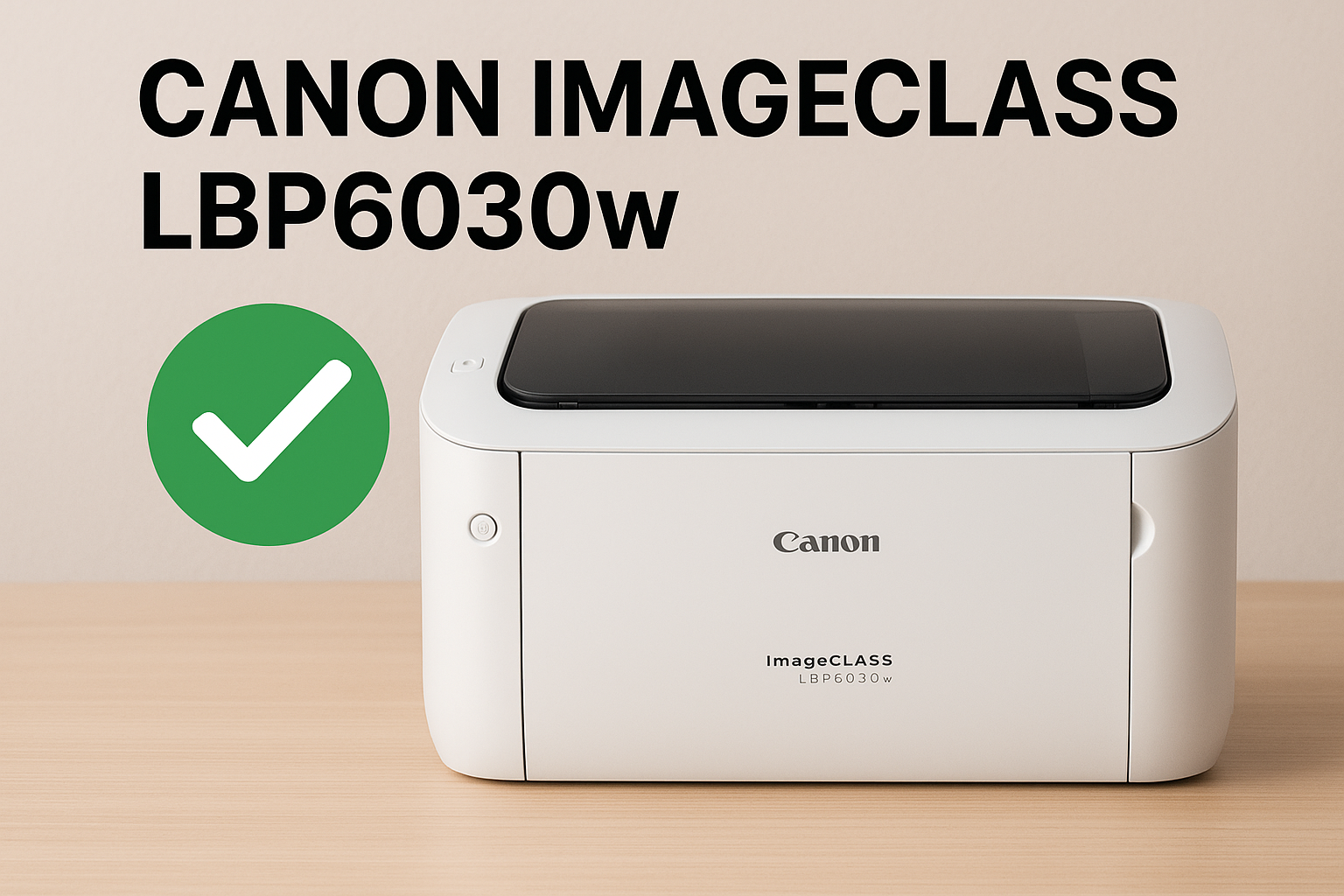
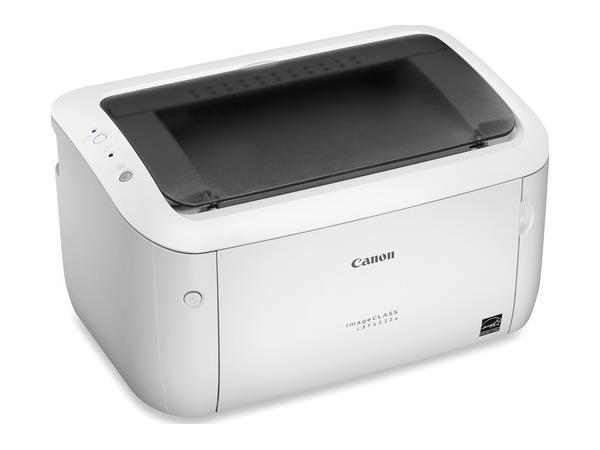 Canon imageCLASS LBP6030w Printer
$139 $479 (71% off) Free Shipping
Fast wireless printing with low maintenance, perfect for daily document needs.
Order Now – Huge Discount Ending Soon
2. Check Printer’s Wi-Fi Settings
Access your Canon printer’s control panel to verify the Wi-Fi settings. Make sure the printer is set to connect to the correct network. On many Canon printers, you can find Wi-Fi settings under the Network or Settings menu. Ensure that the correct SSID (network name) is selected and that the password is entered correctly.
- Open the printer’s control panel or display screen
- Navigate to the network or wireless configuration menu
- Confirm the printer is set to wireless mode
- Ensure the selected network name matches your home or office Wi-Fi
- Re-enter the Wi-Fi password carefully if required
- Save the settings and allow the printer time to connect
⚠️ Avoid Costly Downtime
If your current printer struggles with updates or shows inaccurate ink readings, replacing it now can improve productivity.
Recommended Printer (Best Value):
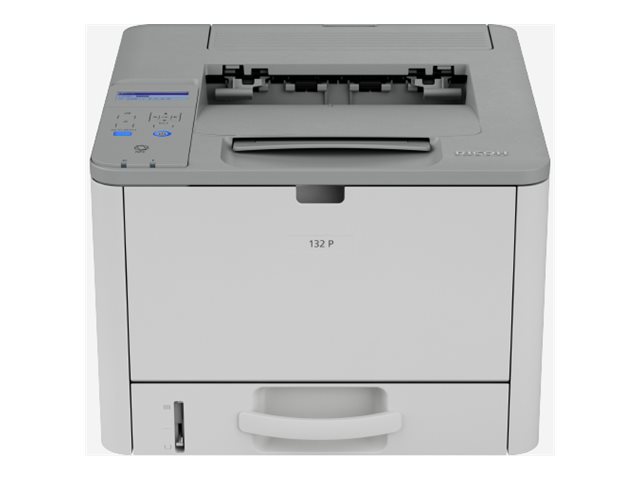
Built for durability and consistent output in office environments.
Order Now While Stock Is Available
3. Restart Your Printer
Sometimes, simply restarting your Canon printer can resolve connectivity issues. Turn off the printer, wait for about a minute, and then turn it back on. This simple reset can clear any temporary issues and reestablish the Wi-Fi connection.
- Turn off the Canon printer using the power button
- Unplug the power cable from the printer
- Wait for about 60 seconds to allow the printer to fully reset
- Plug the power cable back into the printer
- Turn the printer on and let it complete the startup process
- Check if the Wi-Fi connection is restored
⏳ Save Time and Printing Costs
If you print large volumes regularly, a faster and more efficient printer is a smart investment right now.
Recommended Printer (Office Favorite):
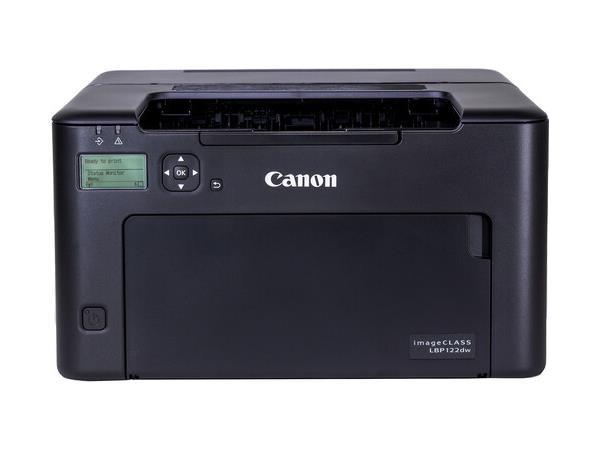
IMAGECLASS LBP122DW Mono Laser Printer
$197 $415 (53% off) Free Shipping
Fast printing with automatic duplex support for everyday office work.
Order Now Before This Deal Ends
4. Reconfigure Wi-Fi Connection
If restarting your printer doesn’t work, try reconfiguring the Wi-Fi connection. Use the printer’s setup menu to search for available networks. Select your Wi-Fi network from the list and re-enter your network password. This process refreshes the printer’s connection settings and may solve the problem.
- Open the printer’s setup or settings menu
- Go to the wireless or network configuration section
- Select the option to search for available Wi-Fi networks
- Choose your correct Wi-Fi network from the list
- Enter the Wi-Fi password carefully using the printer controls
- Confirm and save the new wireless settings
- Wait for the printer to establish a fresh connection
🚨 Upgrade Before Network Printing Slows You Down
Older printers often struggle with network performance and ink tracking.
Recommended Printer (Limited-Time Deal):
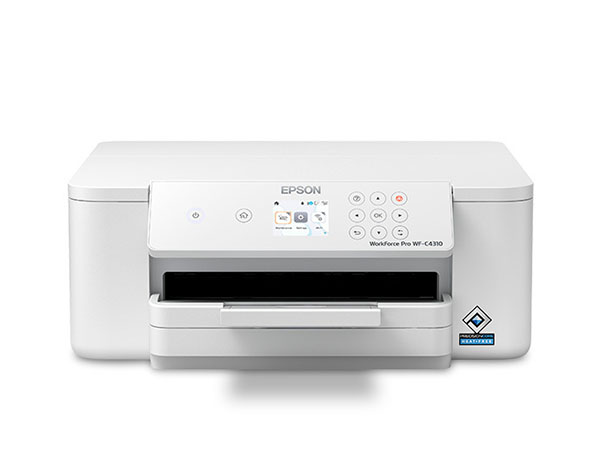
Designed for business use with efficient ink consumption and professional output.
Order Now – Massive Discount Available
5. Update Printer Firmware
Outdated firmware can sometimes cause connectivity problems. Visit Canon’s official website and check for any available firmware updates for your printer model. Follow the instructions provided to download and install the latest firmware. Keeping your printer’s firmware up-to-date ensures compatibility with the latest network protocols.
- Identify the exact model number of your Canon printer
- Open the printer’s settings menu and check the current firmware version
- Visit Canon’s official support page on a computer or mobile device
- Search for available firmware updates for your printer model
- Download the latest firmware if an update is available
- Follow the provided instructions to install the update safely
- Restart the printer after the firmware update completes
🕒 Don’t Delay Your Upgrade
If your printer frequently needs manual checks, switching to a newer model can save effort and time.
Recommended Printer (Great Value):
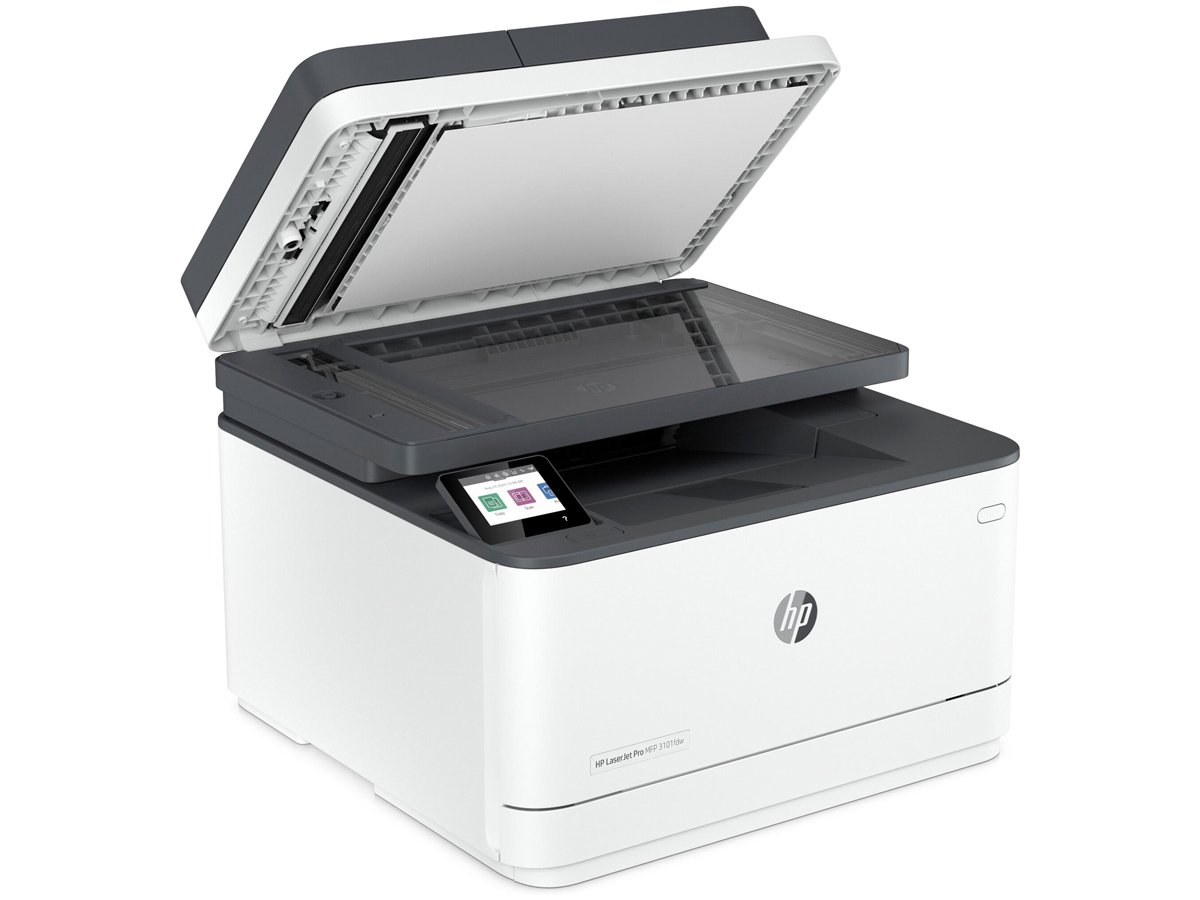
MANUFACTURERHP RENEWED3101FDW Wireless Printer
$216 $309 (30% off) Free Shipping
Reliable color printing with scanning and copying in one machine.
Order Now Before Stock Runs Out
6. Check IP Address Settings
An incorrect IP address can prevent your Canon printer from connecting to Wi-Fi. Check your printer’s network settings to ensure it has a valid IP address. If the printer is using a static IP address, make sure it’s correctly configured. For most users, setting the printer to obtain an IP address automatically (using DHCP) can resolve issues.
- Open the printer’s network or wireless settings menu
- Locate the IP address information displayed on the screen
- Confirm that the printer has been assigned an IP address
- Set the printer to obtain an IP address automatically if available
- Check for any conflicting or invalid network values
- Save the settings and allow the printer to reconnect to the network
7. Remove and Reconnect Printer
If your Canon printer was previously connected to your Wi-Fi network but has lost connection, removing and then reconnecting it can help. Delete the existing connection from the printer’s settings and follow the initial setup process to reconnect to your Wi-Fi network. This fresh setup can fix any lingering issues.
- Open the printer’s network or wireless settings menu
- Select the option to remove or forget the current Wi-Fi network
- Confirm the removal of the saved network connection
- Return to the wireless setup or network configuration screen
- Search for available Wi-Fi networks again
- Select your correct network name from the list
- Enter the Wi-Fi password carefully
- Save the settings and wait for the printer to reconnect
8. Check Firewall and Security Settings
Sometimes, firewall or security settings on your router can block the printer’s connection. Check your router’s settings to ensure that the printer is not being blocked. You may need to adjust the firewall settings or add an exception for your printer to allow it to connect to the network.
- Open your router’s settings using a web browser
- Log in with the router’s admin credentials
- Navigate to firewall or security configuration options
- Check if the printer is listed as a blocked or restricted device
- Allow the printer to access the network if it is restricted
- Disable device isolation or access control features if enabled
- Save the changes and restart the router if required
9. Use Canon’s Troubleshooting Tools
Canon provides troubleshooting tools and guides to help with common connectivity issues. Visit Canon’s support website and look for resources related to your printer model. These guides often include step-by-step instructions and solutions for specific problems, which can be incredibly useful.
- Visit Canon’s official support or help section online
- Select your printer model from the product list
- Open the troubleshooting or diagnostics area
- Follow the guided steps provided for wireless issues
- Use any available diagnostic or setup utilities
- Apply the recommended fixes suggested by the tool
- Test the printer connection after completing the steps
10. Contact Canon Support
If you’ve tried all the above steps and your Canon printer still won’t connect to Wi-Fi, it may be time to contact Canon’s customer support. They can provide expert assistance and guide you through advanced troubleshooting steps. Support representatives are trained to handle various connectivity issues and can offer personalized solutions.
- Locate the model number of your Canon printer
- Gather details about the Wi-Fi issue you are experiencing
- Visit Canon’s official support website
- Choose the contact option such as chat, email, or phone support
- Explain the problem clearly to the support representative
- Follow the troubleshooting steps provided by Canon support
- Schedule service or repair if recommended
Tips to Prevent Future Wi-Fi Issues
- Keep printer firmware updated
- Avoid frequently changing Wi-Fi names or passwords
- Do not power off the printer during printing
- Assign a fixed location for the printer
- Use genuine Canon software
Frequently Asked Questions (FAQ) – Canon Printer Wi-Fi Issues
-
- Q: Why won’t my Canon printer connect to Wi-Fi?
A: Common reasons include incorrect Wi-Fi password, weak signal, outdated firmware, or router security settings blocking the connection.
-
- Q: How can I check if my printer is on the correct Wi-Fi network?
A: Access the printer’s network settings via the control panel and confirm that the SSID matches your home or office Wi-Fi network. Re-enter the password if necessary.
-
- Q: Do I need to restart my printer to fix Wi-Fi issues?
A: Yes, restarting your printer can resolve minor connectivity glitches. Turn it off, unplug for a minute, and then turn it back on before attempting to reconnect.
-
- Q: Can outdated firmware prevent Wi-Fi connection?
A: Yes, outdated firmware may not support the latest router protocols. Check Canon’s official site for firmware updates and install them if available.
-
- Q: What should I do if my printer still won’t connect after resetting the network?
A: Try removing the printer from your Wi-Fi settings and reconnect it from scratch. If the problem persists, check firewall settings, use Canon’s troubleshooting tools, or contact Canon support.
-
- Q: Is it necessary to place the printer close to the router?
A: During initial setup, placing the printer near the router ensures a strong signal and successful connection. You can move it back to its usual location once it’s connected.
-
- Q: Can my router’s firewall block my Canon printer?
A: Yes, firewall or security settings may prevent the printer from connecting. Ensure the printer is allowed in your router settings and adjust security rules if necessary.
-
- Q: Should I contact Canon support if none of the steps work?
A: Yes, if all troubleshooting steps fail, Canon support can provide advanced guidance, diagnose hardware issues, and offer repair or service options.
Conclusion
Dealing with a Canon printer that won’t connect to Wi-Fi can be frustrating, but most issues can be resolved with a few troubleshooting steps. By verifying your Wi-Fi network, checking printer settings, restarting the printer, and updating firmware, you can often fix the problem yourself. If you’re still having trouble, don’t hesitate to seek additional help from Canon’s support resources. With the right approach, you’ll have your printer back online and ready to handle all your wireless printing needs.