 Exclusive Products
Lenovo ThinkPad Won't Turn On? Here’s What You Can Do
Last updated: January 2026

It can be incredibly frustrating when your Lenovo ThinkPad laptop won't turn on, especially if you rely on it for work, school, or personal tasks. Whether it's your Lenovo ThinkPad X1, T14, Yoga 370, or another model, the situation remains the same: you press the power button, but nothing happens. Sometimes, you might see a blinking light, but the laptop refuses to power up.
Fazter Offers Top Products at Unbeatable Prices
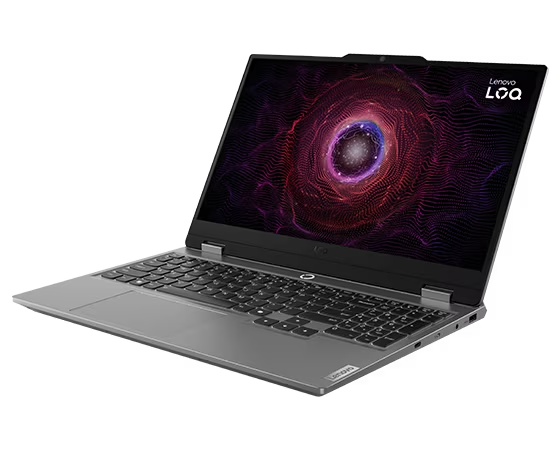
LOQ (15″ AMD) with RTX 4060 FHD 144Hz
High-FPS Gaming at a Smart Price
AMD power, RTX 4060 graphics, and a smooth 144Hz display for competitive gaming
Price: $998
👉 Buy Now

Lenovo Legion Pro 7 Gen 10 (16″ AMD)
Elite Gaming Without Compromise
Flagship-level performance built for hardcore gamers and creators
Price: $2687
👉 Order Now

Lenovo Chromebook Duet Gen 9 (11″)
Perfect for students, travel, and quick tasks with all-day battery life
Price: $419
👉 Shop Today
Common Symptoms:
Lenovo ThinkPad Blinks 3 Times but Won’t Turn On: This is often caused by hardware failures or a corrupted BIOS.
Lenovo ThinkPad Black Screen Won’t Turn On: The screen might be black, but the laptop could be running in the background.
Lenovo ThinkPad Won’t Turn On but Light On: If the power button blinks or lights up, but the laptop doesn’t turn on, the issue may be related to hardware or a failure to boot.
Lenovo ThinkPad Won’t Turn On After Update: Sometimes, a failed or incomplete system update could cause your ThinkPad Lenovo to fail to boot up.
Lenovo ThinkPad T480 Won’t Turn On: Specific models, such as the Lenovo ThinkPad T480, can also experience startup issues that might require troubleshooting steps specific to that model.
Affordable, Reliable, and Unbeatable — Fazter Delivers More Value

Lenovo ThinkPad P16s Gen 4 (16″ AMD)
Power Meets Portability for Professionals
Built for heavy workloads, multitasking, and business-grade reliability with AMD performance
Price: $1502
👉 Buy Now
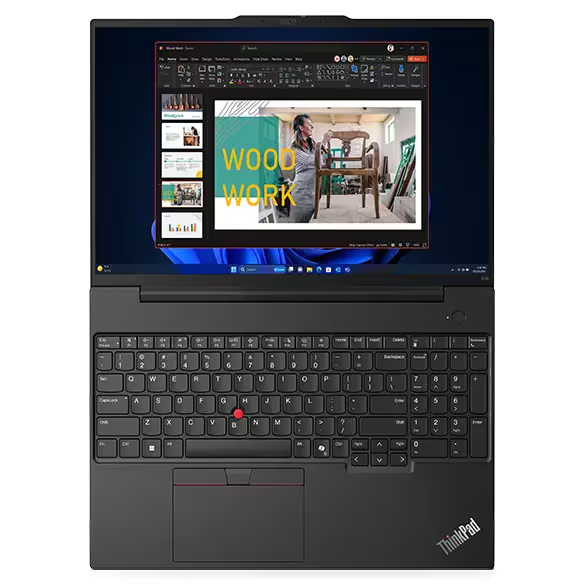
Lenovo ThinkPad E16 Gen 2 (16″ AMD)
Affordable Business Laptop with Big-Screen Comfort
Perfect for daily office work, remote teams, and budget-conscious professionals
Price: $755
👉 Shop Now
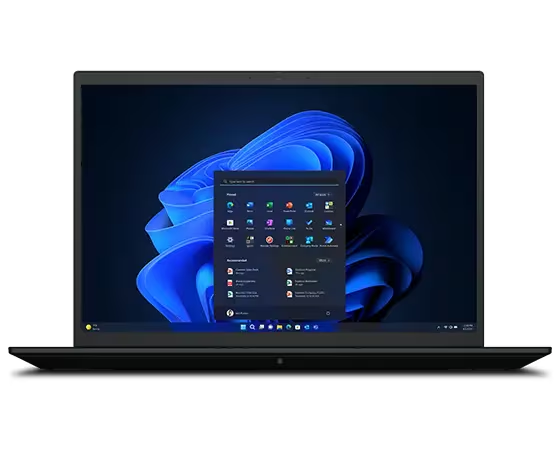
Lenovo ThinkPad P1 Gen 6 (16″ Intel)
Premium Mobile Workstation for Creators & Engineers
High-end performance, stunning display, and ultra-thin professional design
Price: $1427
👉 Get Yours Today
Why Won't My Lenovo ThinkPad Turn On?
1. Battery Issues
The most common reason your ThinkPad might not be turning on is a dead or faulty battery. If the battery is too drained, your laptop won't power up. Sometimes, the battery may not charge properly due to a faulty charger or charging port.
2. Power Supply Problems
If there is an issue with your ThinkPad charger, the laptop may not receive enough power to turn on. Sometimes, the charging cable, adapter, or the power outlet itself might be the cause of the issue.
3. Software or System Crashes
Occasionally, your ThinkPad might not start due to a software or system crash. This could be due to a recent update, an incompatible driver, or a corrupted file. In some cases, a system freeze could prevent your ThinkPad from powering on.
4. Hardware Malfunctions
If there’s an internal hardware issue, such as a faulty motherboard or RAM, your Lenovo ThinkPad may fail to turn on. These issues are less common but can be more complicated to fix.
5. External Devices Interference
Sometimes, external devices such as a USB drive, external mouse, or keyboard can interfere with the startup process. Disconnecting any non-essential peripherals might help solve the problem.
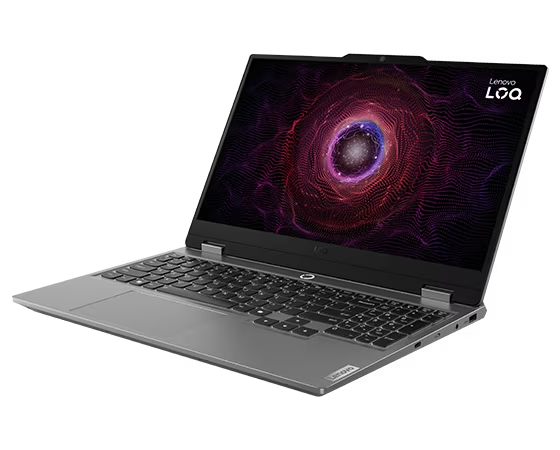
Lenovo LOQ (15″ Intel) with Arc A530M
Affordable Gaming with Reliable Performance
Great entry-level gaming laptop with Intel Arc graphics and fast response
Price: $839
👉 View Deal
Steps to Fix Your Lenovo ThinkPad That Won't Turn On
Step 1: Check Your Power Source
The first thing you should check when your Lenovo ThinkPad won’t turn on is the power source. Here's how to do it:
Check the Power Cable: Make sure that the ThinkPad charger is plugged in correctly to both the laptop and the power outlet. A loose connection can prevent the laptop from receiving power.
Test the Power Outlet: Try plugging the ThinkPad charger into a different power outlet. The current outlet may not be working properly.
Inspect the Charger: Ensure your Lenovo ThinkPad charger is functioning properly. If the charger is damaged, you might need to replace it. If possible, try using another ThinkPad charger to see if it makes a difference.
Step 2: Perform a Hard Reset
If the Lenovo ThinkPad is still not turning on, performing a hard reset may help. This step is useful for clearing any temporary issues that may be preventing the system from starting up. Here’s how to do it:
- Disconnect your ThinkPad charger and any external devices (USB drives, external monitors, etc.).
- Press and hold the power button for at least 30 seconds.
- Release the power button and then try turning your laptop on again by pressing the power button as usual.
- This process drains any residual power and resets the internal components. It’s a simple yet effective step that can solve many minor problems.
- Battery Drain: If the battery is completely drained, leave your ThinkPad plugged into the charger for at least 30 minutes and then try turning it on again. The laptop may need some time to accumulate enough power before it starts.
- Remove the Battery: For models with removable batteries, try taking the battery out, waiting for a minute, and then reinserting it. This can sometimes resolve issues related to the battery’s connection to the laptop.
- Check for Faulty Battery: If the battery is faulty, you might need to replace it. Lenovo ThinkPad batteries are available for purchase from Lenovo’s official store or authorized dealers.
Sometimes, the issue may not be with the Lenovo ThinkPad not turning on, but with the display. If you hear sounds or see lights indicating the laptop is powered on, but the screen remains black, try the following:
External Monitor: Connect your ThinkPad to an external monitor. If the external display works, the issue may be with your ThinkPad’s screen.
Brightness Settings: Double-check the brightness settings to ensure that the screen isn’t dimmed to its lowest setting.
Screen Connection: If you're comfortable with it, you can open up your ThinkPad to check if the display cable is securely connected to the motherboard. If not, you may need professional help.
Step 5: Try Booting in Safe Mode
If your ThinkPad is powering on but failing to load Windows, you might want to try booting in Safe Mode. This can help you troubleshoot software-related issues:
Turn off the ThinkPad.
- Power it back on and immediately start pressing the F8 key repeatedly.
- Once you see the Advanced Boot Options, select Safe Mode and hit Enter.
If none of the above steps work, there might be a hardware problem preventing your Lenovo ThinkPad from turning on. Common hardware issues include:
Faulty RAM: If your ThinkPad won’t turn on after several attempts, it could be a problem with your RAM. You can try reseating or replacing the RAM modules.
Motherboard Issues: In rare cases, issues with the ThinkPad motherboard can prevent the laptop from powering on. If this is the case, you may need professional repair service.
If you're unsure about how to check for hardware problems, it's a good idea to contact Lenovo support or visit an authorized Lenovo repair center.

Buy Lenovo ThinkPad L14 Gen 6 (Intel Core)
When to Contact Lenovo Support
Warranty Check: If your ThinkPad is still under warranty, you may be able to get a replacement or repair free of charge.
Technical Support: Lenovo’s support team can guide you through further troubleshooting or arrange for a service technician if required.
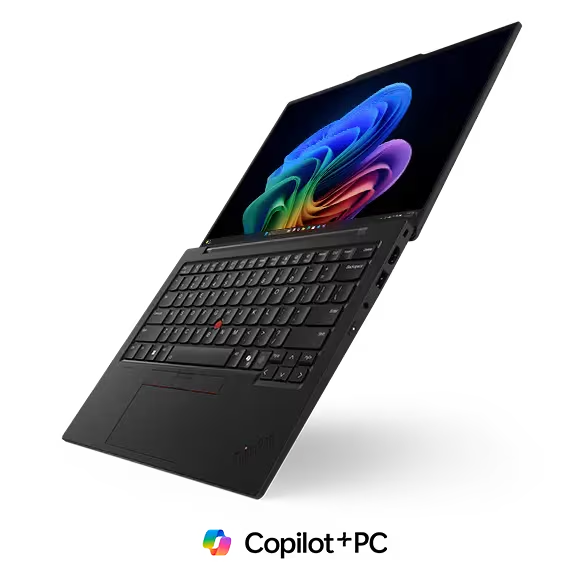
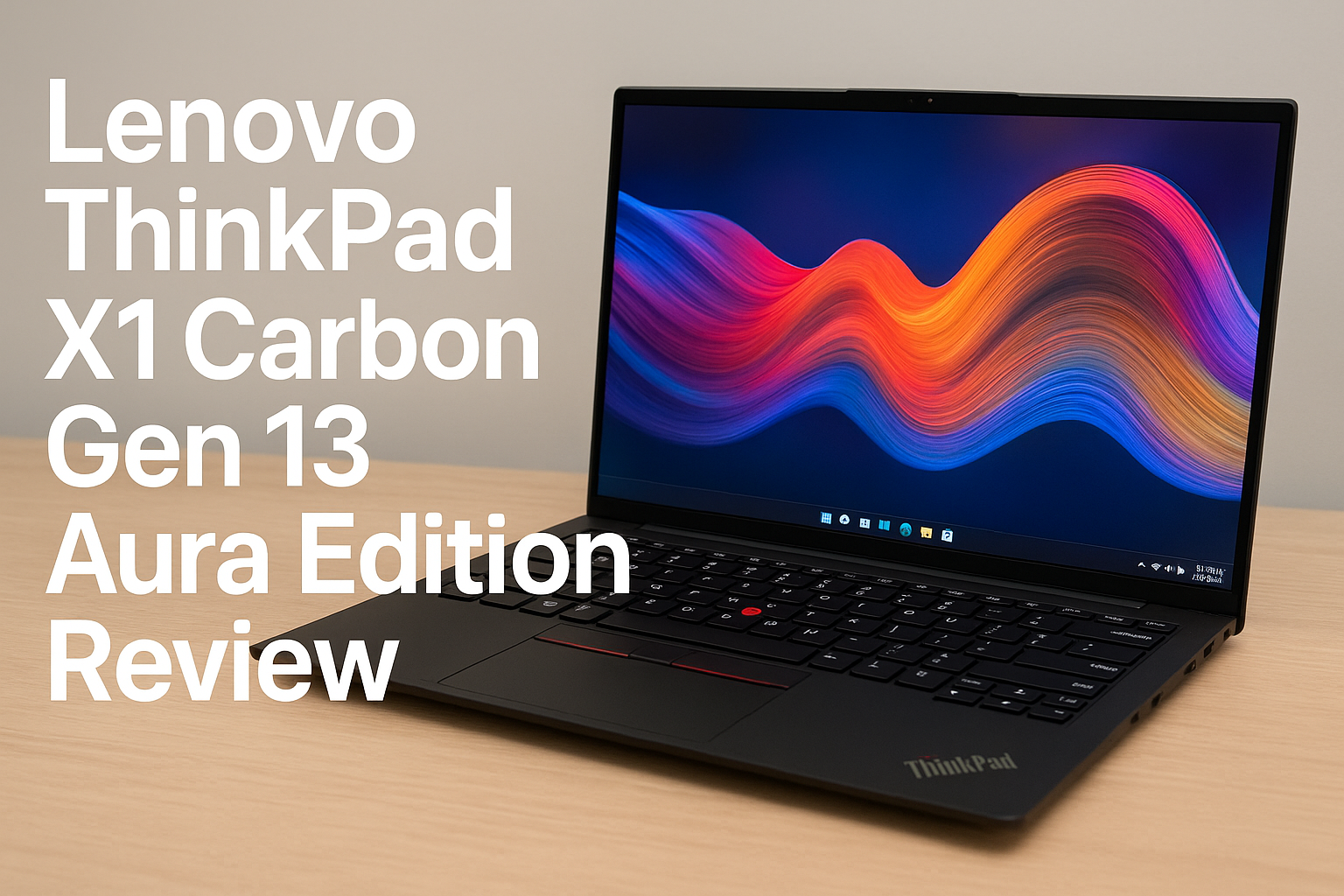
Lenovo ThinkPad X1 Carbon Gen 13 Aura Edition (14″)
Ultra-Light. Ultra-Premium. Ultra-Productive.
Price: $1811
👉 Order Now
Conclusion
A Lenovo ThinkPad that won’t turn on can definitely be frustrating—but it’s usually fixable. Whether you’re using a ThinkPad P16s Gen 4, ThinkPad E16 Gen 2, ThinkPad P1 Gen 6, ThinkPad X1 Carbon Aura Edition, ThinkPad T14s Gen 6, ThinkPad L14 Gen 6, ThinkPad X9 Aura Edition, or the Yoga Book 9i Dual-Screen, the troubleshooting steps in this guide can help resolve common problems such as battery drain, power adapter issues, or temporary system crashes.
In many cases, simple actions like a power reset, checking the charger, or disconnecting external devices are enough to bring your ThinkPad back to life. If you’ve tried everything and your ThinkPad X1, T14, E16, P-series, or Yoga model still won’t turn on, it’s best to contact Lenovo customer support. They can guide you further or arrange professional service if hardware repair is needed.
With the right steps—and timely support—your ThinkPad can be up and running again without unnecessary stress.
Frequently Asked Questions (FAQ)
1. Why is my Lenovo ThinkPad not turning on even when it’s plugged in?
This can happen due to a faulty power adapter, damaged charging port, or internal battery issue. Try using a different charger and check if the charging light turns on.
2. What does it mean if my ThinkPad power light is on but the screen is black?
A black screen usually points to a display, RAM, or BIOS issue. Connect your laptop to an external monitor or perform a power reset to rule out display problems.
3. How do I do a power reset on a Lenovo ThinkPad?
Turn off the laptop, unplug the charger, and remove external devices. Hold the power button for 15–20 seconds, then plug the charger back in and turn it on.
4. Can a drained battery stop my ThinkPad from turning on?
Yes. If the battery is fully drained, the laptop may not respond immediately. Charge it for at least 30–45 minutes before trying to power it on.
5. Why won’t my ThinkPad turn on after a Windows update?
Sometimes Windows updates fail or crash during installation. This can prevent startup. A force restart or booting into recovery mode may fix the issue.
6. Does overheating cause ThinkPad startup problems?
Yes. Overheating can trigger a safety shutdown. Let the laptop cool down for 20–30 minutes and ensure vents are clean before turning it back on.
7. What should I do if my ThinkPad turns on but shuts down immediately?
This usually indicates a battery, power, or motherboard issue. Try removing external devices and charging the laptop fully before restarting.
8. Can a bad RAM module prevent my ThinkPad from starting?
Yes. Faulty or loose RAM can stop the laptop from booting. If possible, reseat or replace the RAM (or get it checked by a technician).
9. Is my ThinkPad dead if there are no lights or sounds at all?
Not necessarily. It could be a charger issue, static power buildup, or a failed power button. A power reset often helps in such cases.
10. When should I contact Lenovo support for a ThinkPad that won’t turn on?
If your ThinkPad still won’t power on after trying all basic troubleshooting steps, contact Lenovo customer support, especially if the device is under warranty or shows signs of hardware failure.